
1. How do I link my employment to the app?
To access your employment details in the Husky app, you first need to link your employment using an invitation code.
Your employer will send you an invitation email containing a unique code.
To link your employment:
Open the invitation email you received.
Make a note of your invitation code.
Log in to the Husky app.
Enter the invitation code when prompted.
Your employment will then be linked to your account.
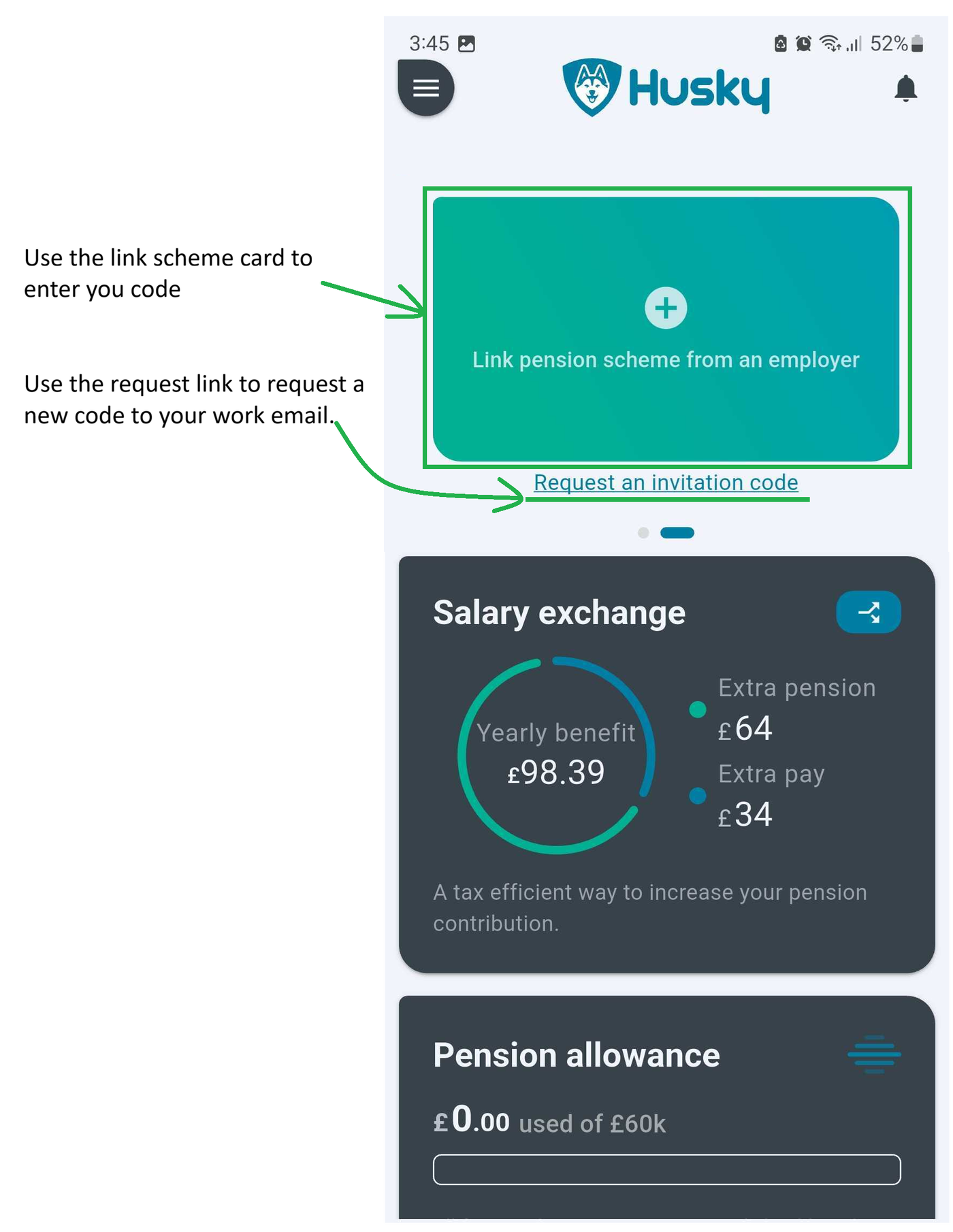
2. How do I request an invitation code?
If you haven't received an invitation email, you can request a new invitation code directly through the app.
To request one:
Open the Husky app.
Select the option to Request an invitation code.
Enter the work email address you use for Husky.
Follow the instructions in the email you receive to obtain your new invitation code.
Make sure you use the correct work email address associated with your Husky employment.
3. Can I link more than one employment to my account?
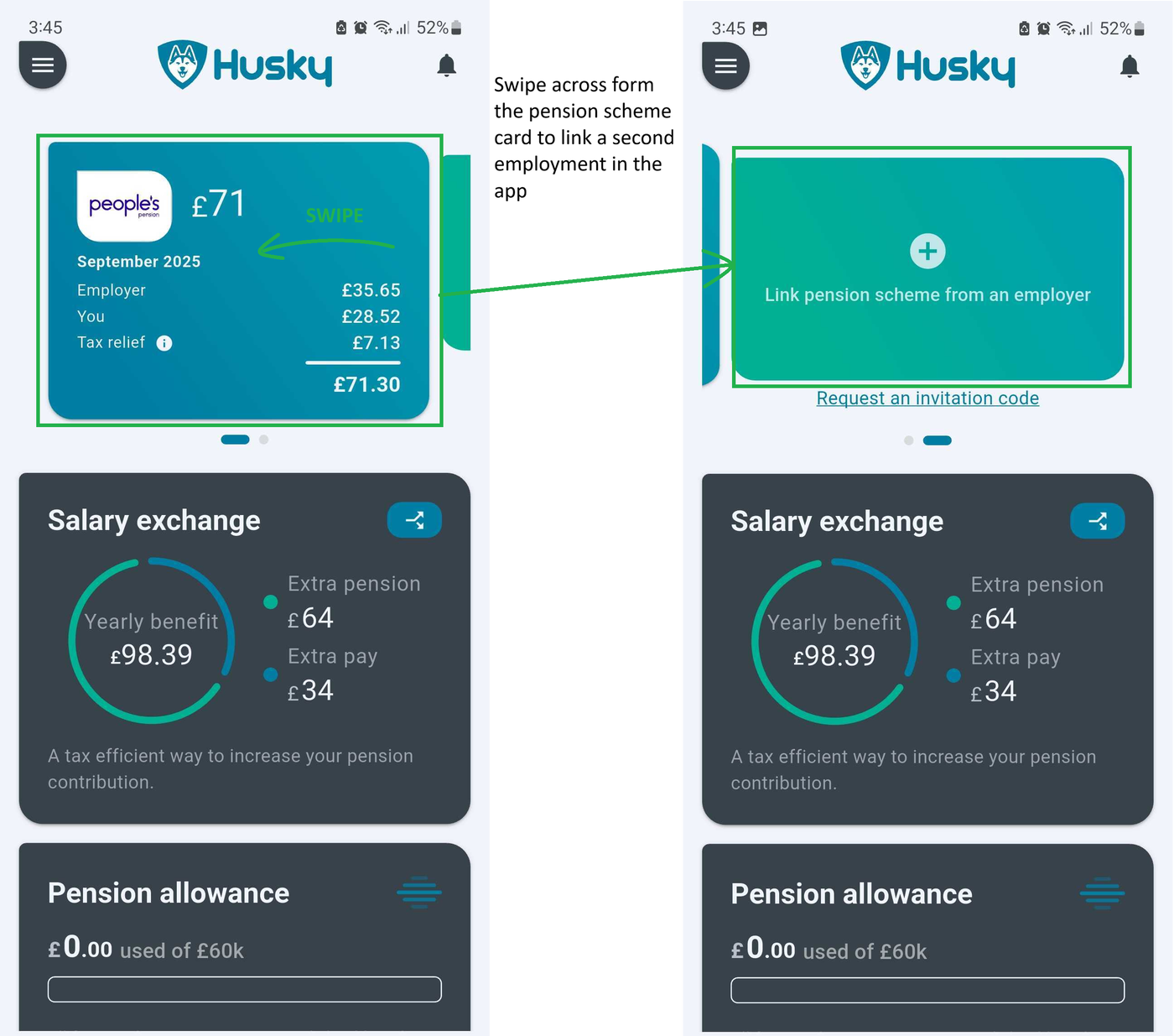
Yes. If you have multiple employments or pension schemes, you can link them all to the same Husky account.
To add another employment:
Obtain an invitation code for your additional employment.
Log in to the Husky app.
Enter the new invitation code.
Your additional employment will be linked to your account.
You can repeat this process for each additional employment you want to add.
4. Can I link my employment if I have already left the company?
Yes. You can still link your employment to the Husky app even if you have left the company.
Your employment status does not prevent you from using an invitation code to link your previous employment.
5. What happens if I leave one company and join another?
You can link your new employment to your existing Husky account without creating a new account.
Simply obtain an invitation code for your new employment and enter it in the app.
You can keep multiple employments linked to your account, including previous employments.
Please note:
Your previous employment will be marked as inactive in the app.
Your new employment will appear separately.
You can continue to access the relevant information for your previous employment.
